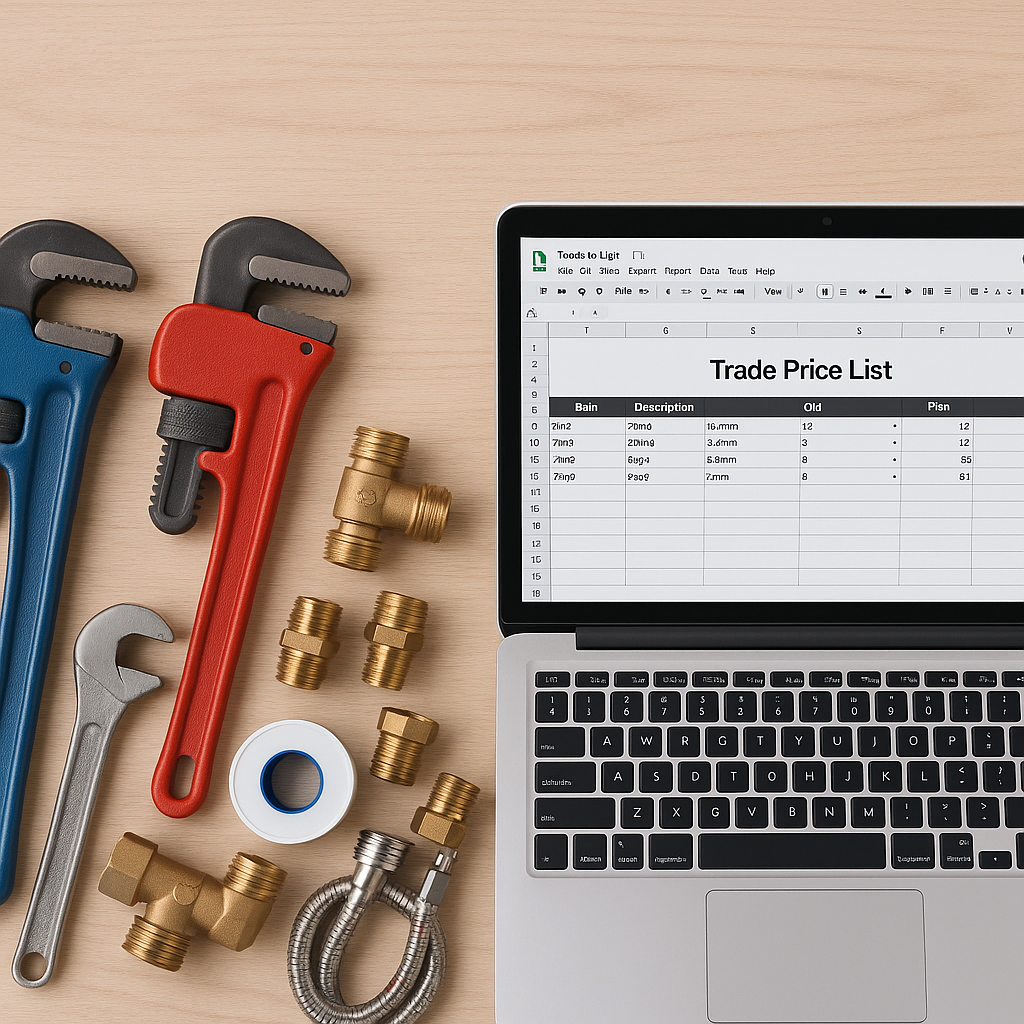
If your material prices live in supplier emails, old spreadsheets, engineer notes and someone’s memory, it usually leads to the same result. Prices drift, margins get squeezed, and your team stops trusting the numbers.
For UK trade businesses using ServiceM8, a well-built Google Sheet can give you one clear place to manage product pricing before it reaches your inventory. That matters even more in September, when many plumbing, heating and maintenance firms are preparing for a busy autumn and winter period. If supplier costs change just as demand picks up, outdated prices can quietly eat into profit.
This guide explains how to build a trade price list in Google Sheets, how to structure it properly, and how to make it easier to keep accurate over time.
Why Google Sheets works well for trade price lists
A lot of trade businesses assume spreadsheets are messy by default. In reality, the problem is usually poor structure, not the spreadsheet itself.
Google Sheets works well because it is:
- easy to access from the office or on the move
- simple to update when supplier prices change
- flexible enough to handle thousands of items
- useful for sorting, filtering and checking data
- a practical starting point before syncing prices into ServiceM8
For many businesses, the sheet becomes the main source of truth for material costs and selling prices. ServiceM8 can then be used as the place where those items are quoted, invoiced and used by the team.
What to include in your price list
A trade price list should be simple enough to maintain, but detailed enough to be useful. The aim is not to create a perfect spreadsheet for its own sake. The aim is to make pricing easier to manage across the business.
At a minimum, include these columns:
- Product code
- Product name
- Category
- Supplier
- Unit cost
- Markup or margin target
- Selling price
- VAT status
- Last updated date
- Notes
Keep one row per item
Each item should appear once in the sheet. If the same part appears in multiple tabs or multiple versions of the file, duplication starts creeping in. That often leads to different prices for the same item, especially when office staff are rushing.
Use clear categories
Group items into practical categories such as:
- copper fittings
- valves
- boilers
- radiators
- consumables
- electrical parts
- AC components
This makes the sheet easier to filter and review when specific supplier increases come through.
How to structure the sheet properly
A good layout saves time later. Keep the main price list in one tab, then use separate tabs only where they serve a clear purpose.
A sensible setup might include:
- Main price list tab for live items
- Supplier import tab for raw supplier data
- Archive tab for discontinued items
- Checks tab for duplicate or missing data alerts
Your main tab should be clean and consistent. Avoid merged cells, random colours and manual formatting tricks that make filtering harder.
Make your columns consistent
Consistency matters more than most people realise. For example:
- always use the same product code format
- keep product names in one style
- use numbers only in cost and selling price columns
- set dates to one format across the sheet
If one person enters "15mm elbow" and another enters "elbow 15 mm", that can create confusion later when matching data to ServiceM8.
Useful formulas and checks to add
You do not need a complex spreadsheet to make it useful. A few simple formulas can make your price list much easier to manage.
Helpful examples include:
- Selling price calculation based on cost and markup
- Date checks to flag items not reviewed in the last 3 or 6 months
- Duplicate checks on product codes
- Blank cell alerts for missing costs or names
You can also use filters to review:
- items from one supplier
- products updated this month
- rows with missing selling prices
- categories affected by recent cost increases
This is especially useful going into autumn, when plumbing and heating firms across the UK often need confidence in their pricing before the colder months create more callouts and faster quoting.
Common mistakes to avoid
The best Google Sheets price list is the one your team will actually maintain. That means avoiding unnecessary complexity.
Here are some common mistakes:
- keeping several different versions of the same file
- mixing live items with old or discontinued stock
- using inconsistent product names
- leaving no record of when prices were last checked
- storing supplier costs in one sheet and selling prices somewhere else
- relying on one person to understand the system
If your engineers and office team are working from different numbers, job costing becomes harder and pricing mistakes become more likely.
How this fits with ServiceM8
Google Sheets is useful for building and maintaining the price list. ServiceM8 is useful for using that pricing in day-to-day work. The key is making sure the data stays aligned.
That is why many trade businesses use a Google Sheet as the central pricing file, then look for a reliable way to connect it with ServiceM8. If you are reviewing your setup, start with Materialm8, which is built for ServiceM8 users who want better control over inventory pricing.
Once your sheet is structured properly, it becomes much easier to:
- update prices in one place
- review supplier changes before they go live
- reduce mismatched pricing across the team
- support cleaner ServiceM8 inventory data
A simple process to follow each month
To keep your trade price list accurate, use a repeatable routine:
- collect the latest supplier price changes
- update the supplier import tab
- review flagged changes in the main list
- check for duplicates or missing fields
- confirm selling prices still protect your margin
- archive discontinued items
- push approved updates into your working system
This does not need to be complicated. It just needs to be consistent.
Final thought
A well-built trade price list in Google Sheets gives your business more control. It helps you keep pricing clear, reduce avoidable mistakes and protect margins when supplier costs move.
For ServiceM8 users, the real value comes from having one reliable place to maintain your pricing before it flows into the rest of the business. If you want a simpler way to connect your sheet with ServiceM8, visit Materialm8 to see how MaterialM8 can help you manage pricing with less admin.