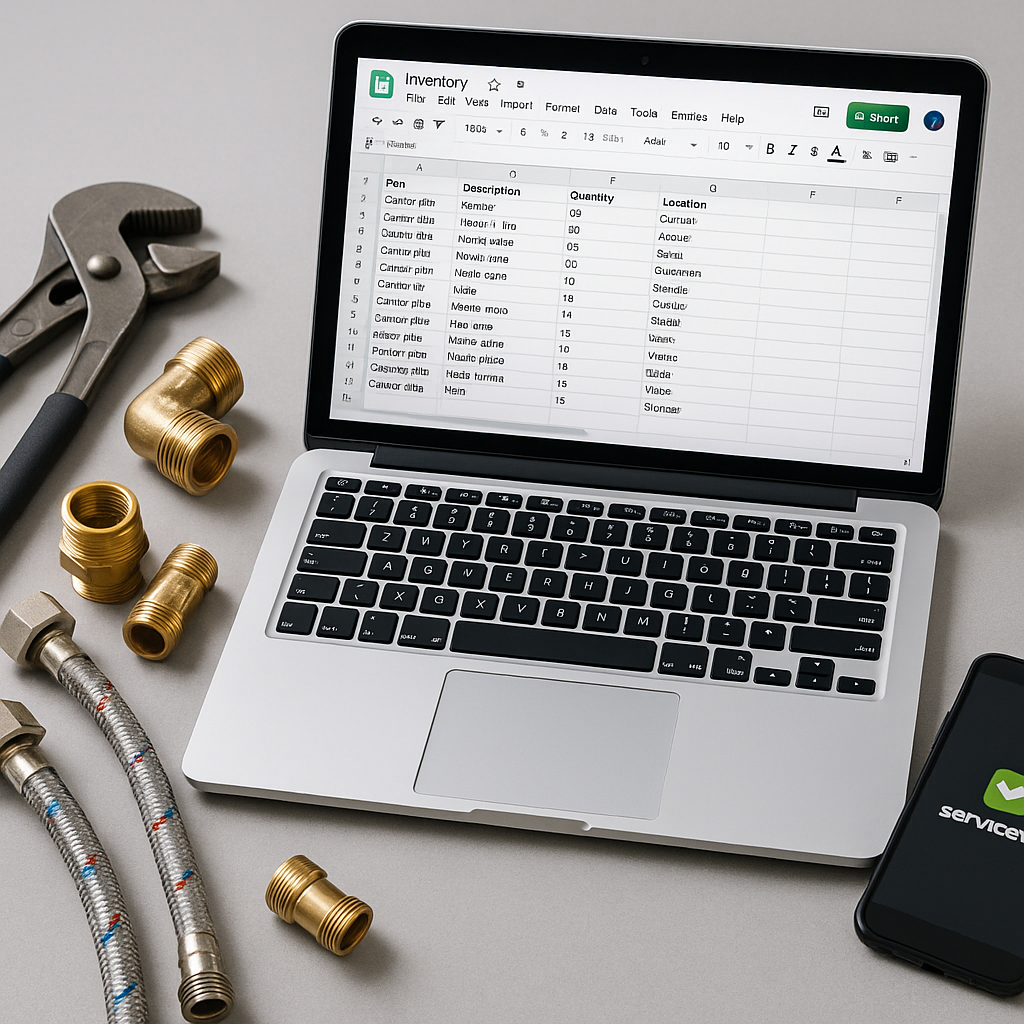
If your ServiceM8 inventory feels harder to manage every month, the problem is often not ServiceM8 itself. It is usually the way your data is set up before it ever gets imported or updated.
For many UK trade businesses, especially plumbing and heating firms heading into a busy autumn, Google Sheets is still the easiest place to control material pricing, product names and supplier updates. A well-structured sheet helps you keep pricing consistent, reduce admin and avoid messy inventory issues when engineers and office staff are working fast.
In this guide, we will look at how to structure a Google Sheet for ServiceM8 inventory, what columns to include, and how to keep it practical for day-to-day use.
If you are reviewing your setup before the colder months, this is a good time to tidy your data and make sure everyone is working from the same price list.
Why your sheet structure matters
A Google Sheet is not just a list of parts. It becomes your working source of truth for product data.
When the structure is unclear, a few common problems tend to appear:
- duplicate items with slightly different names
- missing product codes
- old supplier costs being used in new quotes
- engineers selecting the wrong item
- office staff manually correcting prices in ServiceM8
- inconsistent markup across similar materials
A tidy sheet makes it much easier to prepare a clean import, compare supplier updates and maintain accurate inventory in ServiceM8.
For ServiceM8 users, this matters even more in September and October, when heating work often picks up and small pricing mistakes can quietly eat into margins across a lot of jobs.
The core columns every sheet should include
If you are building a sheet for ServiceM8 inventory, keep it simple first. You do not need dozens of columns. You need the right ones.
Here is a practical starting point.
1. Product code
This should be your main unique identifier wherever possible. It helps you match items reliably and avoid confusion between similar products.
Use a consistent format and avoid changing codes unless there is a genuine business reason.
2. Product name
Make names clear and readable for both office staff and engineers. Keep them specific enough to tell similar products apart.
For example, instead of writing “Valve”, write “22mm lever ball valve”.
3. Category
Categories help keep large inventories manageable. For a plumbing or heating business, this might include:
- copper fittings
- valves
- radiators
- boilers
- consumables
- waste pipe
- cylinders
This is useful when reviewing stock lines or checking groups of products after a supplier price rise.
4. Supplier
Add the main supplier for each item. This makes it easier to compare updates and track where pricing has come from.
5. Supplier cost
This is your latest buy price. Keep it separate from your sell price.
If material costs rise before winter, which often happens as demand changes, this is one of the first columns you will want to update.
6. Sell price
This is the price you want used in ServiceM8. Keep it clearly defined so there is no confusion between cost, markup and selling rate.
7. Unit
Include the unit of measure, such as each, metre, box or pack. This helps prevent mistakes when similar items are bought and sold in different quantities.
8. Status
A simple status column can be very helpful. Use values such as active, old, or review.
This gives you a safe way to flag products without deleting them straight away.
Useful extra columns for growing inventories
Once the basics are in place, a few extra columns can make your Google Sheet much more useful.
Add a last updated column
This shows when an item was last reviewed or changed. It is a simple way to track how current your data really is.
Add notes for special cases
Some items need a brief note, such as supplier substitution, seasonal availability or pack size details.
Keep notes short and factual.
Add a markup or margin check
You may choose to include a markup field or a formula that checks whether the sell price still fits your pricing rules.
This can help highlight items that need attention after supplier increases.
A simple layout that works well
A clean structure usually looks like this:
- Product code
- Product name
- Category
- Supplier
- Supplier cost
- Sell price
- Unit
- Status
- Last updated
- Notes
Put one product on each row. Keep one type of data per column. Do not merge cells, and do not use colour as the only way to explain information.
That matters if you later want to review, filter, sort or sync the data properly.
Common mistakes to avoid
Even a useful sheet can become difficult to manage if basic rules are missing.
Here are some common problems:
- multiple tabs with conflicting versions of the same price list
- inconsistent product naming
- blank product codes
- costs and sell prices entered in the same column
- hidden manual edits with no review process
- deleting old lines instead of marking them for review
If you want one source of truth, your team needs to know which sheet is live and who is responsible for updating it.
How to keep the sheet usable with ServiceM8
When thinking about ServiceM8 inventory in Google Sheets, the goal is not to build a perfect spreadsheet. The goal is to make updates safer and quicker.
A few practical tips:
- lock header rows so columns stay consistent
- use data validation for status or category fields
- keep naming rules written at the top or in a separate guidance tab
- review duplicates before making large updates
- check a sample of high-use items before syncing or importing changes
This approach is especially useful for busy trade firms in the UK that need accurate prices during the autumn heating season, when quoting speeds up and admin pressure increases.
Where MaterialM8 fits in
Once your sheet is structured properly, managing it becomes much easier. The challenge for many ServiceM8 users is then keeping that sheet aligned with what is already inside ServiceM8.
That is where Materialm8 can support the process. MaterialM8 is built for ServiceM8 users who want a simpler way to work with inventory data, reduce duplicate headaches and keep pricing more consistent without rebuilding their whole workflow.
If you are starting from scratch, it can help to begin with a clean sheet structure first, then review how your data connects back to ServiceM8.
You can also explore Materialm8 to understand how the platform supports ServiceM8 inventory management, or return to the Materialm8 homepage for an overview.
Final thoughts
A good sheet structure saves time later. It helps you update prices faster, avoid confusion across your team and keep your ServiceM8 inventory easier to trust.
If your current spreadsheet has grown messy over time, start small. Clean up the columns, make product codes consistent and separate cost from sell price. Those simple changes can make a big difference before the busy winter period begins.
If you want a better way to manage the connection between your spreadsheet and ServiceM8, take a look at Materialm8 and see how it can help your business keep inventory data under control.