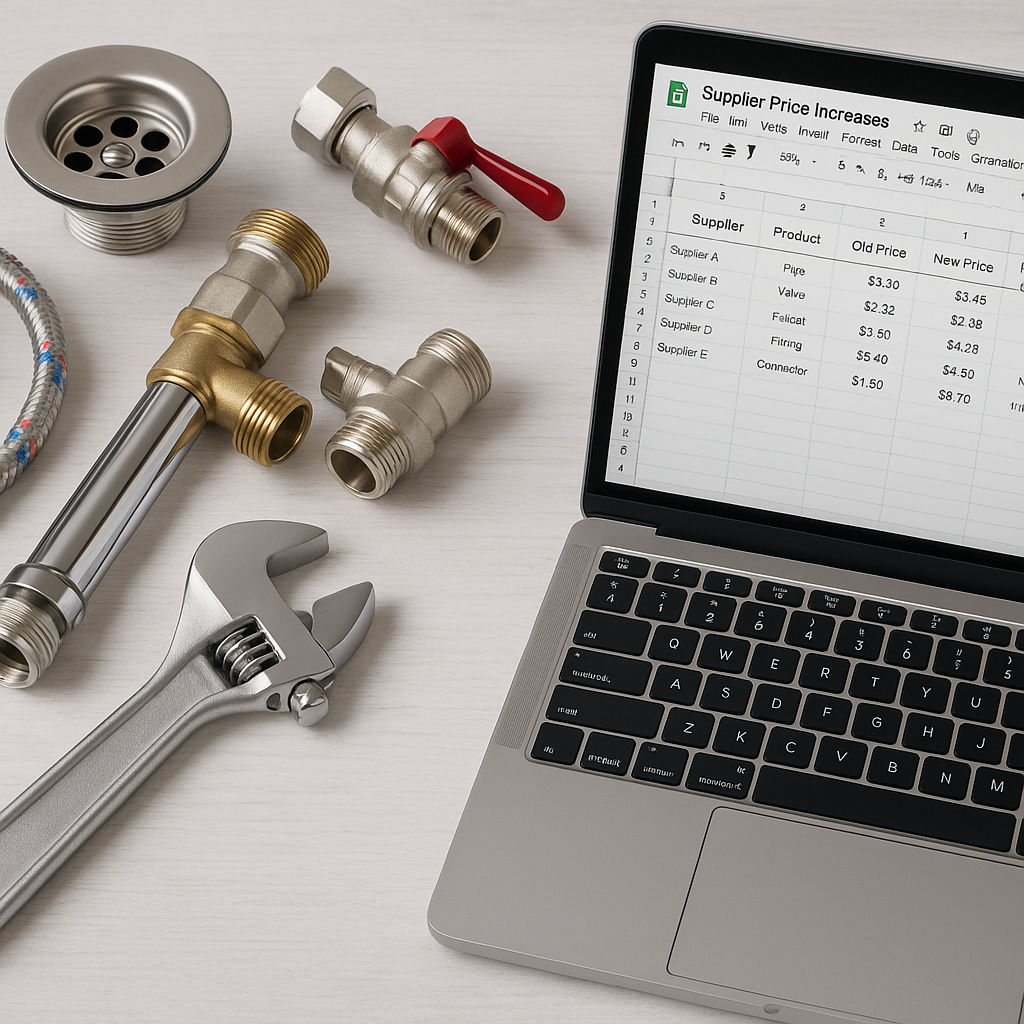
If you run a plumbing, heating or other trade business in the UK, supplier price rises can quietly chip away at your margins. September is often when firms start preparing for a busy autumn and winter period, which makes it a good time to review your material prices before demand picks up.
A simple Google Sheet can help you stay on top of changes without turning price management into a weekly headache. For ServiceM8 users, it can also give you one clear place to review price changes before updating your inventory.
Why supplier price increases are easy to miss
Most trade businesses do not get caught out by one huge increase. The real problem is lots of smaller changes across valves, pipe, fittings, controls, pumps and consumables.
When prices are updated in different emails, PDFs and supplier portals, it becomes very easy to:
- keep using old buying prices n- quote jobs using out-of-date figures
- apply the wrong markup
- create inconsistent prices across office staff and engineers
- lose margin without noticing it straight away
For plumbing and heating firms heading into colder months, this matters even more. If your team is quoting boiler repairs, heating upgrades or emergency call-outs using old material costs, small errors can add up quickly over a busy season.
Why Google Sheets works well for price tracking
Google Sheets is useful because it is simple, flexible and easy to share. You do not need a complex system to keep control of supplier changes. You just need one reliable place to compare old and new prices.
A good sheet lets you:
- store your current buying prices
- add updated supplier costs
- calculate the price difference automatically
- flag large increases for review
- update your selling prices consistently
- keep a record of when changes were made
This approach is especially helpful if you use ServiceM8 for quoting and invoicing but want a clearer process for reviewing material prices first.
How to set up your Google Sheet
You do not need anything fancy. Start with a clean sheet and use one row per item.
Recommended columns
Include columns such as:
- Product code
- Product name
- Supplier name
- Old cost price
- New cost price
- Price difference
- Percentage increase
- Current selling price
- New selling price
- Last updated date
- Notes
This gives you a simple way to compare old and new supplier costs side by side.
Useful formulas to add
A few basic formulas can do most of the hard work.
For example:
- Price difference: New cost price minus old cost price
- Percentage increase: Price difference divided by old cost price
- New selling price: New cost price multiplied by your chosen markup
You can also use conditional formatting to highlight increases above a certain level, such as 5 per cent or 10 per cent. That makes the biggest changes easy to spot.
A practical process for handling supplier increases
Once your sheet is set up, the key is using the same process each time a supplier sends new pricing.
Step 1: Add the latest supplier prices
Import or copy the new prices into your sheet. Make sure product codes and names match your existing records as closely as possible.
Step 2: Compare old and new costs
Use your formulas to see which items have changed, and by how much. This helps you avoid manually checking every line.
Step 3: Review your selling prices
Not every increase needs the same response. Some items may need a full selling price update. Others may still sit within your acceptable margin.
This is where many firms get caught out. They update buying prices mentally, but never actually change the selling price used in quotes and jobs.
Step 4: Keep a clear audit trail
Add the date and source of the supplier update. If someone asks why a price changed, you have a record.
Step 5: Push approved changes into your workflow
If ServiceM8 is where your team selects materials, make sure the agreed prices are reflected there too. Otherwise, your Google Sheet becomes accurate but your live job pricing stays wrong.
Tips to make your sheet more useful
A basic sheet is good. A well-managed sheet is much better.
Here are a few practical tips:
- Use one master sheet, not separate versions saved by different team members.
- Lock key columns and formulas so they are not edited by mistake.
- Add filters by supplier, category or percentage increase.
- Separate cost and sell prices clearly to avoid confusion.
- Review high-volume items first, especially common plumbing and heating materials.
- Schedule regular checks, particularly before busy seasonal periods.
For many UK trade firms, the biggest win is consistency. Everyone works from the same numbers, whether they are in the office or out on jobs.
Common mistakes to avoid
Even with Google Sheets, there are a few traps worth avoiding.
Updating prices without checking item matches
If supplier descriptions vary slightly, it is easy to update the wrong item. Always use a reliable product code where possible.
Changing cost prices but not sales prices
This is one of the most common reasons margins drift down over time.
Letting the sheet become a side system
Your sheet should support the rest of your process, not sit separately from it. If your team quotes from ServiceM8, the approved pricing needs to be reflected there.
Where MaterialM8 fits in
For ServiceM8 users, Google Sheets can work well as the place where price changes are reviewed and approved. Then the next step is making sure those updates are reflected in your inventory without lots of manual rekeying.
That is where Materialm8 can help. It is designed for ServiceM8 users who want a simpler way to manage inventory pricing from a spreadsheet-based source of truth.
If you are reviewing your prices ahead of the autumn and winter rush, now is a good time to tighten up the process. A clear Google Sheet, a repeatable review method and a reliable way to keep ServiceM8 aligned can help reduce mistakes and protect your margins.
To see how this could work for your business, visit Materialm8 and explore a simpler way to keep your pricing under control.