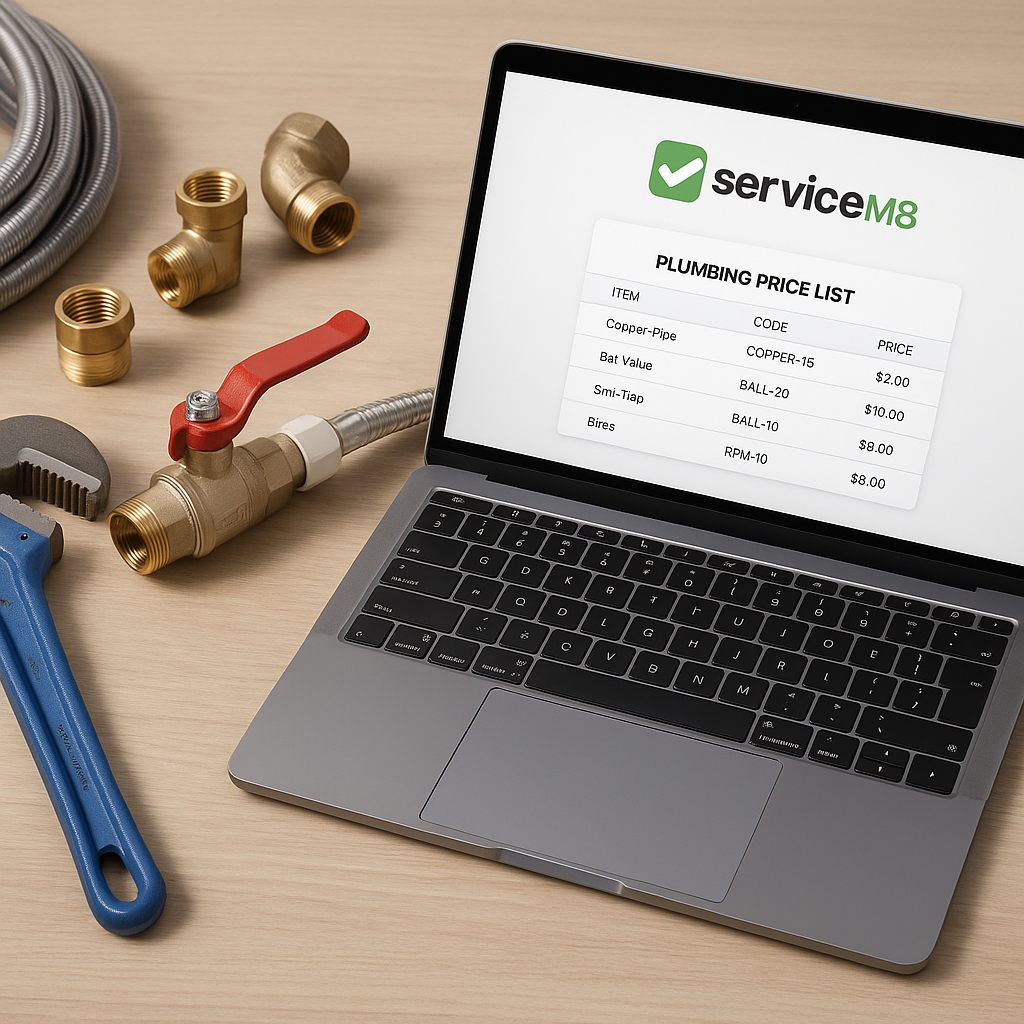
If your team is still adding or editing material prices one item at a time, importing a price list into ServiceM8 can save a lot of admin. It also helps you keep pricing more consistent across quotes, jobs and invoices.
For many UK trade businesses, August is a busy month for catching up on admin while engineers rotate holiday cover and supplier price changes continue to creep in. If your plumbing, heating, electrical or air conditioning business is relying on outdated spreadsheets or a messy inventory list, now is a good time to tidy things up.
This guide explains how to import a price list into ServiceM8, what to prepare first, and how to avoid common mistakes.
Why importing a price list matters
A proper import is not just about speed. It helps create one reliable source of truth for your material pricing.
When your inventory is inconsistent, a few common problems usually follow:
- duplicate items with slightly different names
- old buying prices that no longer reflect supplier costs
- engineers selecting the wrong item on jobs
- office staff quoting from a different list to the field team
- reduced job margins caused by small pricing errors
For businesses managing hundreds or thousands of products, manual updates become harder to control over time. That is why many ServiceM8 users eventually move towards a more structured inventory setup, often with Google Sheets acting as the master price list.
What to prepare before importing into ServiceM8
Before you upload anything, spend a bit of time cleaning your data. This step makes the actual import much smoother.
Start with a master price list
Your best option is to work from one central file, rather than pulling prices from several supplier sheets at once. A simple Google Sheet can work well because it is easy to update, share and review.
Your sheet should include clear columns such as:
- product code or SKU
- product name
- description
- unit cost
- sell price
- category
- supplier name, if useful for reference
Try to keep naming consistent. For example, if one item is listed as “22mm copper elbow” and another similar line says “copper elbow 22 mm”, you increase the chance of confusion later.
Check for duplicates before import
One of the biggest causes of a messy ServiceM8 inventory is importing items that already exist under a different name or code. Before you bring in a new list, compare it against your current inventory.
Look out for:
- matching products with different spellings
- old items that are no longer used
- blank product codes
- several versions of the same item from different supplier lists
This is especially important for growing trade businesses in the UK where different office staff may have added items over time.
How to import a price list into ServiceM8
The exact steps can vary depending on how your data is structured, but the general process is straightforward.
- Export or review your existing ServiceM8 inventory first.
- Clean your spreadsheet so each item has a clear identifier.
- Standardise product names, codes and pricing columns.
- Remove duplicates and archive anything you no longer need.
- Import the file into ServiceM8 using the relevant inventory import process.
- Review a sample of imported items to make sure prices, names and categories have mapped correctly.
- Ask your office team and engineers to use the updated list going forward.
If you only focus on getting data in quickly, you can end up importing a bigger mess. It is better to treat the job as a cleanup and standardisation exercise, not just a file upload.
Common mistakes to avoid
A lot of ServiceM8 inventory problems begin before the import even starts. Here are some of the most common issues.
Using product names without codes
Names can vary too easily. Product codes are usually more reliable for matching items across supplier sheets and existing inventory.
Importing old supplier prices
If your buying costs changed earlier in the summer and your sheet has not been refreshed, your selling prices may already be behind. That can quietly damage margins across lots of jobs.
Skipping a test review
Always check a batch of imported items before your whole team starts using them. A quick spot check can save hours of rework.
Letting more than one list exist
If the office uses one spreadsheet, engineers use another list, and ServiceM8 contains something different again, pricing mistakes are almost guaranteed. One master list works better.
Should your master price list live in Google Sheets or ServiceM8?
For many businesses, ServiceM8 is where the team uses items day to day, but not necessarily where pricing should be maintained manually.
A spreadsheet is often better for:
- reviewing supplier increases
- comparing old and new prices
- sorting and filtering large product lists
- checking formulas and markups
- collaborating with office staff
ServiceM8 is excellent for using those items on real jobs. In practice, many firms find it easier to manage the data in a spreadsheet first, then push clean updates into ServiceM8.
That is one reason spreadsheet-based workflows are still so useful for trade businesses.
A simpler way to keep imported prices accurate
Importing a price list into ServiceM8 is a good start, but the real challenge is keeping it accurate after the first upload. Supplier costs change, new products get added, and old items need retiring.
That is where a structured process helps. MaterialM8 is built for ServiceM8 users who want a cleaner way to manage inventory pricing without changing how the whole business works.
If you want to understand the wider workflow, take a look at Materialm8. It is a useful starting point for businesses that want better control over product data, cleaner imports and more consistent pricing.
Final thoughts
If you are wondering how to import a price list into ServiceM8, the technical upload is only part of the job. The bigger win comes from preparing a clean master list, using consistent product codes, and making sure everyone in the business works from the same pricing data.
For plumbing and heating companies, especially during busy summer catch-up periods, this can make quoting faster, reduce avoidable mistakes and help protect margins when supplier prices move.
If you want a better way to manage your price list workflow, visit Materialm8 to see how MaterialM8 helps ServiceM8 users keep inventory organised and pricing easier to control.